WebStorm 2026.3: New Design-Code-Production Workflow, JetBrains Air in WebStorm, and More
Summary
WebStorm 2026.3 is now available! Building a UI feature with an AI agent often involves more switching between tools than actual coding. You copy values out of Figma, hunt for the right story in Storybook, write the prompt, wait for the agent, and then check the result in the browser and find yourself starting the […]
Original Text
WebStorm 2026.3 is now available!
Building a UI feature with an AI agent often involves more switching between tools than actual coding. You copy values out of Figma, hunt for the right story in Storybook, write the prompt, wait for the agent, and then check the result in the browser and find yourself starting the loop over again.
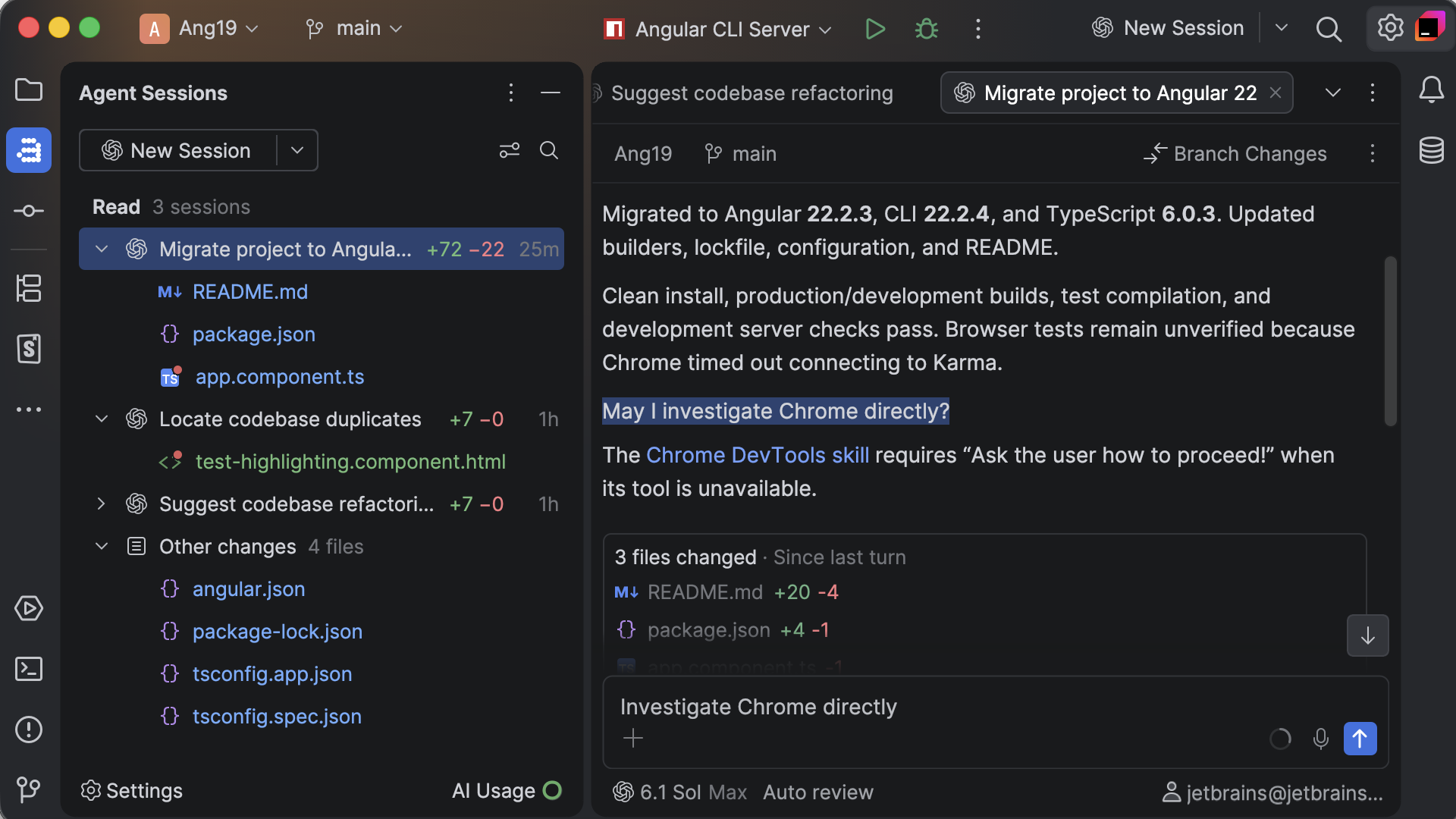
This release brings that end-to-end frontend loop into the IDE and connects it to your agents. Figma Connect, now with the Inspect panel, puts design details right in the chat. Storybook Connect shows you and your agents which components to reuse. Chrome DevTools Connect lets your agent do its work in the browser and hand the result back to you for verification.
To connect these steps, JetBrains Air is now available directly in WebStorm. Run multiple sessions with JetBrains and third-party agents in parallel, so you can keep working while each agent finishes its own tasks. You can also pick the right agent for each task without changing how your team works.
DOWNLOAD WEBSTORM 2026.3
The highlights of this release include:
Agentic development
JetBrains Air in WebStorm is bringing agentic development directly into your IDE, with your choice of coding agents, support for parallel workflows, and IDE-native review and verification.
Design-code-production workflow
Figma Connect with the Inspect panel – Get exact CSS values, colors, and design tokens from Figma and hand them to your agent, without having to copy them manually.
Storybook Connect – Find, open, and create stories without leaving the IDE, and let AI write the ones you’re missing.
Chrome DevTools Connect – Let your agent check and fix its own work in a real browser, so you start your review with a result that has already been tested.
Frameworks and ecosystem
Benefit from Stable TypeScript 7 support for React and Angular without migration, plus fixes for WebStorm’s Angular, Sass, CSS, Vitest, Mocha, and Tailwind CSS support.
This release also includes many fixes and quality-of-life improvements, which you can learn about below.
You can update to WebStorm 2026.3 via the Toolbox App or download it directly from our website.
JetBrains Air in WebStorm
One place to run your agents and verify their work
As of this release, JetBrains IDEs ship with Air, a new layer for agentic development. Work with the coding agents of your choice, and run, track, and verify multi-agent workflows inside your IDE, where code intelligence helps agents make fewer wrong turns and gives you the tools to review every change before it ships.
Try Air in WebStorm
Your agents, your models, your subscriptions
Air works with Claude Agent, Codex, Gemini, GitHub Copilot, Junie, OpenCode, and other ACP-compatible agents. It detects the agents already installed on your machine so you can connect them in a click, and you can add more from the agent registry.
Your existing setup carries over, too: provider subscriptions, API keys, and even a custom base URL all work, with no JetBrains AI subscription required. Run Claude Agent on your Claude subscription in the terminal or in a full-screen IDE tab, use other agent subscriptions in the chat or terminal, and switch between subscriptions at any moment, even mid-session.
A central workspace to review changes and guide the agent
Review an agent’s changes with the surrounding code and your project tools in view, and send feedback straight back to the agent. Anchor a note to a specific line in the diff, or comment directly from the code, so the agent gets concrete context about the change you want. Work in the chat or the terminal, whichever suits you.
Free AI agent with Junie Lite
Air includes free AI with the Junie Lite configuration, so you can use an agent without a subscription. You only need a JetBrains Account.
Still using AI Assistant? A notification will offer you a trial of Air. Moving to Air hides AI Assistant, if you wish to return to AI Assistant follow the steps outlined here. Air automatically migrates your IDE skills, MCP configuration, agents installed through ACP, authentication, and chat history. Chat mode history isn’t migrated.
Design to production end-to-end workflow
Figma Connect: Inspect designs without leaving WebStorm
Implementing a design shouldn’t mean switching between Figma and your editor, pasting links, and copying spacing and color values manually.
With Figma Connect, you can:
Add screenshots, URLs, and design values to the context without switching back and forth.
Browse and navigate Figma layers from the IDE.
Inspect the selected design layer while working in JetBrains Air.
Send design context to any agent, such as Claude Code, Codex, or Cursor.
The Inspect panel gives you the implementation details for the selected layer: CSS values, colors, and design tokens. You get the exact numbers you need to build the component, without having to open another tool or retype anything.
Figma Connect requires one-time setup. See the Figma Connect documentation for connection instructions.
Chrome DevTools Connect: Let agents check their work in the browser
Code that compiles isn’t necessarily code that works. With bundled Chrome DevTools Connect plugin, your agent can test what it builds in a real browser and fix problems before it brings you the result. When you spot something that needs tweaking, you can show your agent exactly where to make the change.
Through the bundled Chrome DevTools CLI skill, an agent can:
Open pages and move through application flows.
Inspect the DOM and rendered UI.
Read console logs and network requests.
Take screenshots and interact with page elements.
Reproduce runtime issues and confirm fixes in the browser.
The first time an agent uses the skill, WebStorm prompts you to install the required package. After that, browser-assisted workflows will work without you having to wire up an additional MCP integration manually.
Storybook Connect: Build with the components you already have
Storybook is most useful when every component has a story, and least useful when you have to hunt for the right one. Storybook Connect brings Storybook into WebStorm so you and your agents can stay in one window.
A dedicated tool window lets you browse and search stories. You can jump between a story and its source code, and your changes always stay in sync with the Storybook app. Start your own local Storybook server or set one up in one click.
Storybook Connect analyzes component props and finds components without stories, and then its AI-assisted tools generate the missing stories without a detailed prompt from you. A bundled CLI and bundled skills make the same capabilities available to developers, CI scripts, and AI agents:
webstorm storybook-connect component-props ./src/Button.tsx
webstorm storybook-connect possible-stories ./src/Button.tsx
webstorm storybook-connect missing-stories ./src/Button.tsx
webstorm storybook-connect create-missing-stories ./src/Button.tsx
Storybook Connect is distributed as a separate plugin and requires Storybook 10 or later. See JetBrains Marketplace for compatibility information and the latest version.
Together, these pieces cover the path from design to code to a working page. They all run in Air, inside WebStorm, under the same context and review workflow.
Platform updates
Sound cues for IDE events and editor line marks
We’re continuing our work to make JetBrains IDEs accessible to every developer. This release introduces sound cues, built-in responses to requests that give you information without requiring you to have the context in view.
Screen reader users now get audio cues for editor line marks: errors and warnings, lines added, changed, and removed under version control, and code folding. You can also hear when things finish. Builds, tests, and other time-consuming background tasks report their results with distinct sounds for success, warning, and error states. Breakpoint hits make a sound, too. And if you’re working with multiple monitors or several projects at once, you can enable these sounds so you don’t have to glance at the screen to check statuses.
With screen reader support enabled, line-mark cues and sounds for the most important events (builds, tests, and breakpoint hits) are enabled by default. Agents in Air come with sound cues of their own, and they’re enabled by default for everyone, whether or not you enable screen reader support. You’ll hear when an agent finishes, stops with an error, or needs your input, and when dictation starts or stops. Everything else is opt-in. You can explore and preview the sounds on the new Accessibility settings page, and use the Play sound checkbox on the Notification settings page to enable cues for a specific notification group. Learn more from this blog post.
Automatic error and freeze reporting
WebStorm 2026.3 automatically sends error and UI freeze reports to JetBrains, helping us identify the problems that interrupt your work and prioritize fixes based on their impact.
Reports contain only technical data. Personal details such as file paths, URLs, and usernames are removed from report messages before they leave your machine. You can turn automatic reporting off in Settings | Appearance & Behavior | System Settings | Data Sharing.
Framework and ecosystem updates
TypeScript 7 support for Angular and React, no migration required
TypeScript 7 support is Stable in WebStorm, including in Angular and React projects. It swaps the Node.js-based language service for a Go-based engine, so coding assistance has less overhead in large projects. You can select it without migrating or changing your project’s TypeScript version. On the Kibana codebase, project load time dropped from about 12 seconds to three. Read the full article.
Angular
WebStorm now infers correct template types when you work with Angular in WSL, instead of falling back to any. Furthermore, @default never; inside @switch is no longer reported as an unknown block.
Sass and CSS
We’ve also fixed several issues with Sass and CSS support. Namespaced functions and variables inside calc() no longer trigger Unexpected term. In addition, we removed 161 non-shipping properties from the CSS syntax data. Finally, pseudo-selectors are no longer flagged as unknown when the Images plugin is disabled.
Testing and tooling
Single-test runs work again in Vitest 5, and Mocha 12 (ESM) no longer shows a reporter warning for them. The Tailwind CSS language server also works with a remote Node interpreter in Docker on macOS.
Performance and quality improvements
Find Usages on huge codebases
Find Usages no longer stalls the IDE for minutes in very large monorepos. We tested it on Kibana, which has more than 1,000 tsconfig files.
Angular performance
Resolving Reference no longer hangs in workspaces with several Angular projects. We also fixed a memory leak in Angular on TypeScript 7 that was causing CPU spikes of 800% – 900%.
Final words
This release focuses on the part of the workflow between your design and the shipped code. Your agents work directly from the Figma design and your own components, check their results in a real browser, and stay in one place under JetBrains Air. Code your way, and ship with confidence.
Try the latest version and let us know what you think. Your feedback shapes what comes next.
Lotu Radar provides attributed news summaries and links to the original publisher. Full reporting and copyright remain with the source.